Create Application
To call the Mekari POS API, you need an application on the Mekari Developer portal. The application gives you the client credentials for HMAC authentication.
Use developers.mekari.com for production and sandbox-developers.mekari.com for the sandbox.
Request Access
Before you begin, confirm that your account is authorized to access Mekari Developer.
- Go to developers.mekari.com and log in with your Mekari account.
- If your dashboard displays an empty page, your account has not been authorized.
- Contact your specialist or support to request Mekari Developer access.
Create an Application
Once you have access to the Mekari Developer dashboard, follow these steps to create an application:
- Click the Create Application button near the top of the dashboard.
- Fill in the required fields:
| Field | Description |
|---|---|
| Application Name | A descriptive name that reflects your integration purpose (e.g., ERP Sync Internal). |
| Company | The merchant company you want to integrate with. You can select only one company per application; to integrate with more companies, create one application per company. The company's Mekari POS plan must include the Public API add-on. |
| Authorized Scopes | The endpoints your application may call. Open the mekari-pos-open tab and select scopes that start with mekari-pos-open:v2:. Select only the scopes your application needs (see Scopes). |
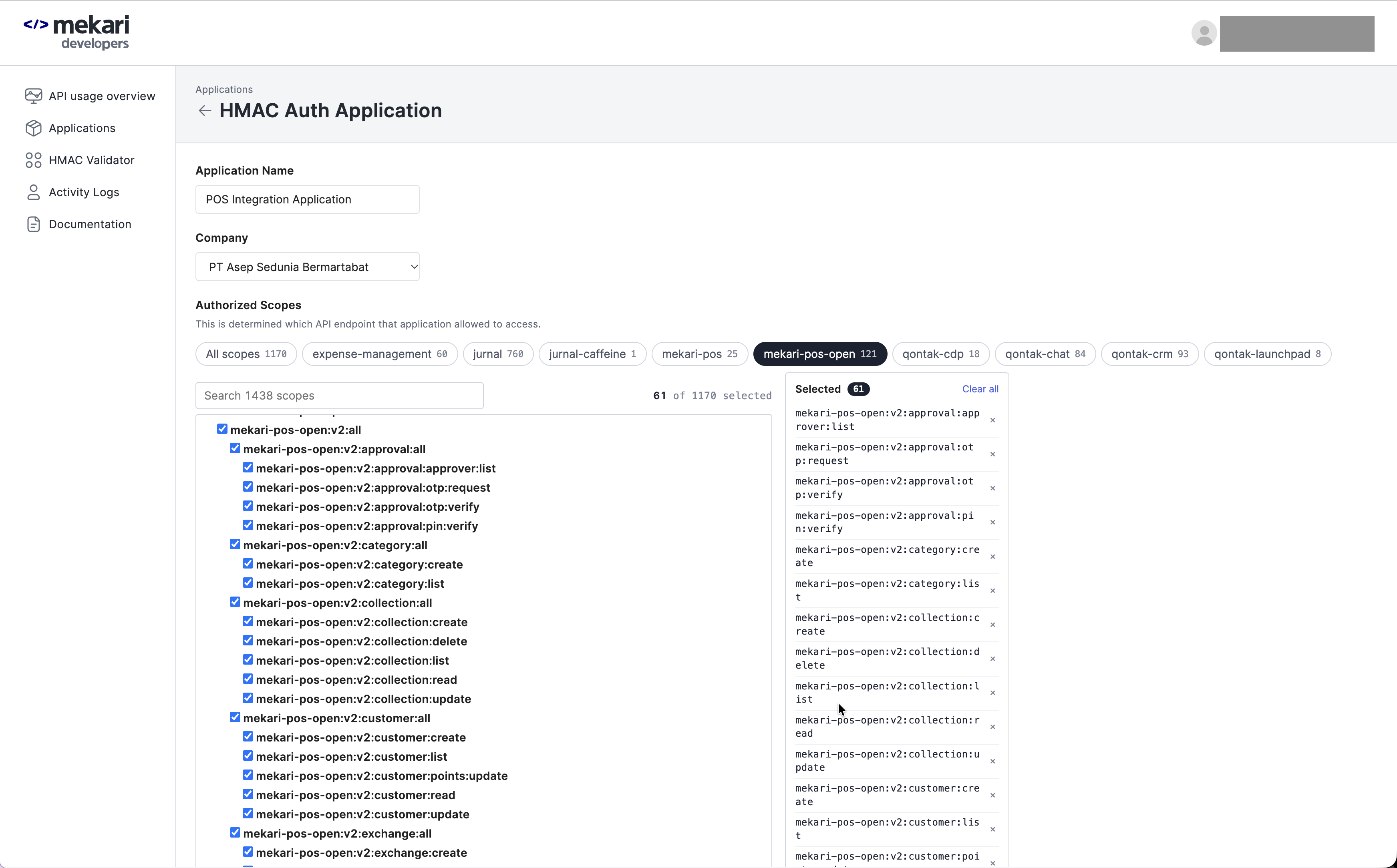
- Click Submit to create the application and generate your client credentials.
Only request the scopes your application actually needs. This follows the principle of least privilege and limits the impact if credentials are compromised.
Scopes
Every Mekari POS endpoint has its own scope. All Mekari POS scopes start with mekari-pos-open:v2:.
| Scope | Grants |
|---|---|
mekari-pos-open:v2:all | Every endpoint of API v2 |
mekari-pos-open:v2:<resource>:all | Every endpoint of one resource, for example mekari-pos-open:v2:customer:all |
mekari-pos-open:v2:<resource>:<action> | One endpoint, for example mekari-pos-open:v2:customer:list for GET /customers |
Resources: outlet, user, shift, customer, promotion, voucher, category, collection, product, raw-material, recipe, inventory, order-source, payment-method, order, return, refund, exchange, approval, webhook.
A request to an endpoint outside your application's scopes is rejected by Mekari API Gateway with 401.
Client Credentials
After you submit the application form, the portal displays your Client ID and Client Secret.
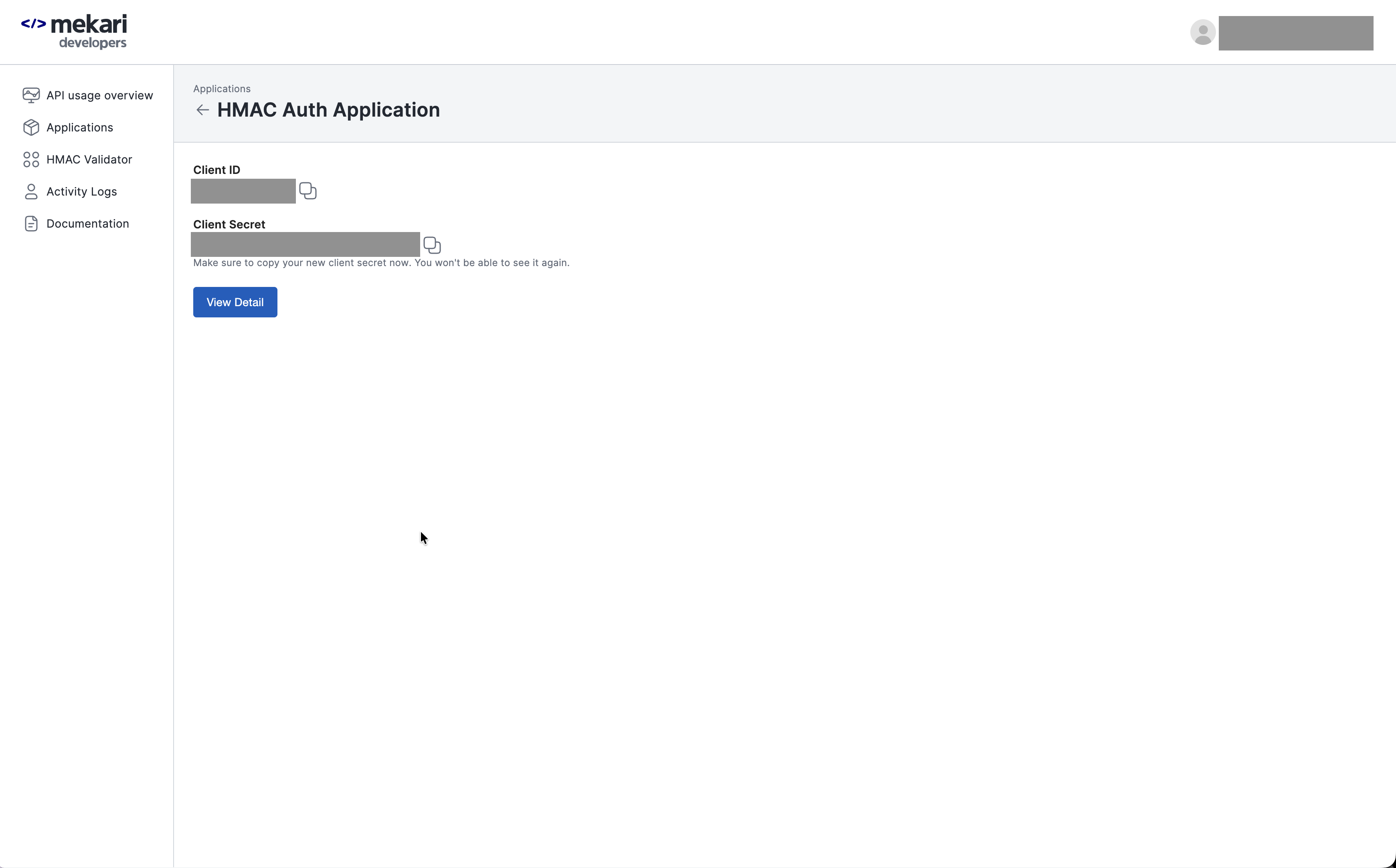
Copy the Client Secret immediately. The secret is only displayed once and cannot be retrieved later. If you lose it, you must regenerate new credentials.
| Credential | Description |
|---|---|
| Client ID | Identifies your application; used as username in the HMAC header |
| Client Secret | Used to sign your requests. Keep this confidential. |
Use these credentials to generate HMAC signatures for authenticating your API requests. See HMAC Authentication for implementation details and code examples.
Next Steps
- Set up Authentication using your client credentials.
- Review the API Reference to explore the available Mekari POS endpoints.